mirror of
https://github.com/liyunze-coding/rython-task-bot-v2.git
synced 2026-11-06 16:53:33 +00:00
| .. | ||
| images | ||
| lib | ||
| scripts | ||
| styles | ||
| .prettierrc | ||
| config.js | ||
| index.html | ||
| LICENSE.md | ||
| README.md | ||

Widget - Rython Task Bot v2
Instructions
Websocket Server
Websocket server running is required for browser source to work.
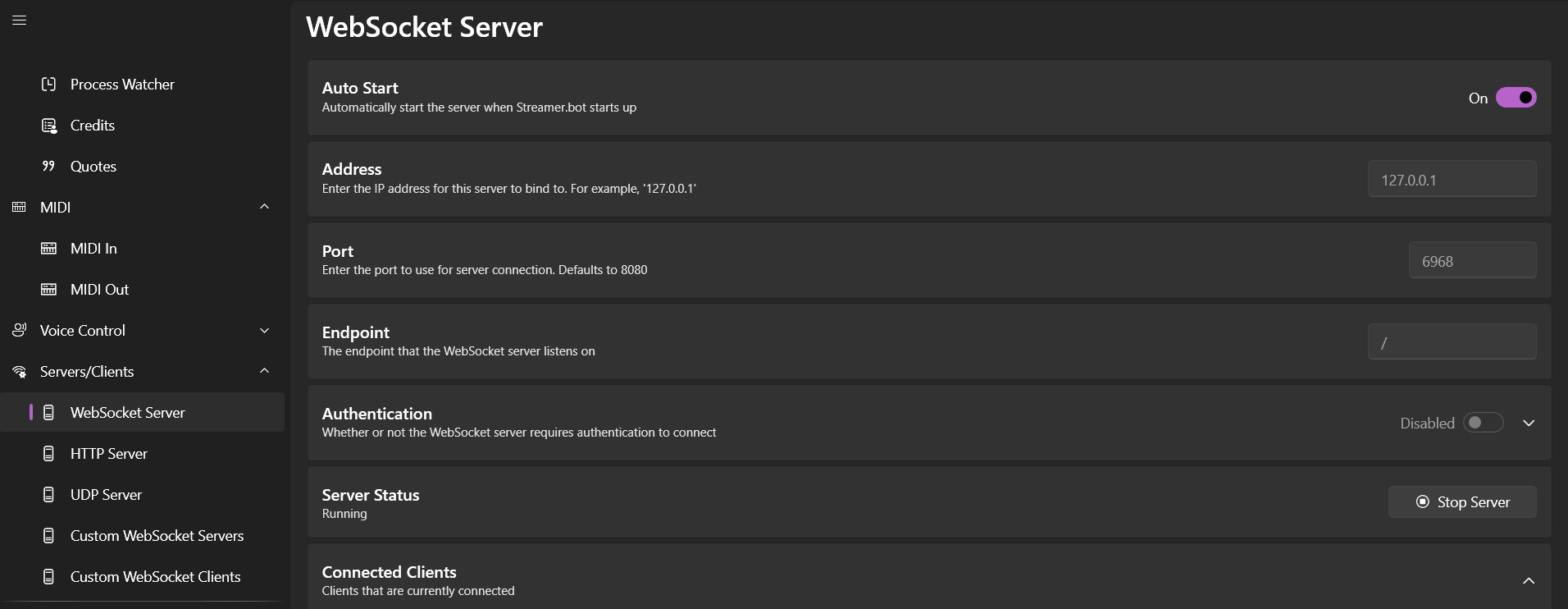
- Streamer.Bot -> Servers/Clients -> Websocket Server
- Auto Start:
ON; Click onStart Server - If port number already taken, change port number
- Ensure that config.js's websocket settings are in-sync with Streamer.Bot's
OBS
- Add a new browser source in your scene
- Tick on "Local"
- Navigate to the index.html file
- Optionally customise the width and height
- Click on "Ok"
Style Customisation
Note: styles/structure.css is meant to be the bare structure to allow the task widget to be functional.
Customise the styles in styles/style.css, whether it's through the CSS variables (in :root), or the CSS below it.
Fonts
You can import Google fonts into your style.css:
- Open Google Fonts
- Select your desired fonts
- Click on
View selected families - Click on
Get Embed Code - Select
@importunder Web - Copy the import
@import url('...'); - You can use it in your CSS already!
... {
	font-family: "Fredoka";
    /* ... */
}